Tag: templates

  • The Freelancer’s Guide to Free Invoice Templates: What to Look For and How to Use Them

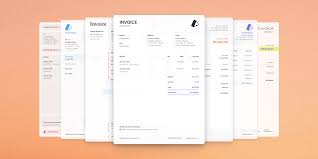
    Invoice Templates | Figma

    As a freelancer, your invoice is more than just a request for payment—it’s a legal record, a tax document, and a reflection of your professionalism. Yet many freelancers rely on hastily thrown-together invoices that miss critical details, leading to delayed payments, tax headaches, and even disputes.

    The good news? You don’t need expensive software to create polished, compliant invoices. Free templates are abundant, but not all are created equal. In this guide, we’ll break down what makes a great invoice, where to find free templates, and how to customize them to protect your income and your brand.

    Why Invoices Matter More Than You Think

    Invoices are the backbone of your freelance business. They serve as formal requests for payment, but they also double as legal documents that track your income for tax purposes. Without a proper invoice, you risk underreporting earnings, failing to enforce payment terms, or even invalidating a tax deduction.

    Moreover, a clear, itemized invoice speeds up payment. Clients appreciate invoices that are easy to process through their own accounting systems—frictionless billing means faster cash flow for you.

    Anatomy of a Professional Invoice

    A professional invoice should include the following elements:

    • Invoice number: A unique, sequential identifier (e.g., INV-001, INV-002). This helps you track payments and satisfies tax authorities.
    • Invoice date and due date: Clearly state when the invoice was issued and when payment is expected (e.g., Net 15, Net 30, or due on receipt).
    • Your details: Full name, business name (if applicable), contact information, and tax ID (VAT, GST, or sales tax ID as required).
    • Client details: Name and billing address.
    • Itemized line items: Description of each service or product, quantity/hours, rate, and subtotal.
    • Taxes and discounts: Any applicable taxes (e.g., VAT, sales tax) or discounts, clearly calculated.
    • Total amount due: The grand total, prominently displayed.
    • Payment terms: Accepted payment methods (bank transfer, PayPal, etc.) and any late payment policy.
    • A thank-you note: A small touch that reinforces professionalism and goodwill.

    Where to Find Free Templates

    You don’t need to pay for invoicing software to get started. Here are some reliable sources for free templates:

    • Microsoft Office: Offers a range of invoice templates for Word and Excel. These are customizable and familiar to most users.
    • Google Docs/Sheets: The template gallery includes simple invoice templates that are easy to edit and share online.
    • Canva: Provides visually appealing invoice templates that you can brand with your logo and colors.
    • Adobe Express: Similar to Canva, with a focus on design flexibility.
    • Freelancer platforms: Tools like Wave, Zoho Invoice, and FreshBooks offer free templates even if their full software is paid. These often come with built-in calculators and tax fields.

    Choosing the Right Template for Your Needs

    Consider your workflow and branding:

    • The minimalist freelancer: If you want speed and simplicity, a clean one-page template with no frills is ideal. Focus on clarity and ease of use.
    • The brand-conscious freelancer: Use invoices as a marketing touchpoint. Add your logo, brand colors, and a professional tone to reinforce credibility.
    • The tax-compliant freelancer: Prioritize templates that include all required tax fields for your country. For example, EU freelancers need VAT numbers, while US freelancers may need sales tax IDs.
    • The tech-savvy freelancer: Look for templates that integrate with accounting software (e.g., QuickBooks, Xero) or that can be generated via apps like Wave for automation.
    • The international freelancer: Ensure the template handles multiple currencies, VAT/GST variations, and multilingual client communication.

    Common Pitfalls to Avoid

    • Assuming ‘free’ means ‘compliant’: A generic template may not include country-specific tax fields. Always customize for local regulations.
    • Confusing invoices with receipts or quotes: A quote is a pre-work estimate; an invoice is a request for payment; a receipt is proof of payment. Mixing them up causes confusion.
    • Inconsistent invoice numbering: Skipping numbers or using non-sequential numbering can raise red flags with tax authorities.
    • Vague payment terms: Terms like ‘payment due soon’ are unenforceable. Specify exact due dates and late fees.
    • Missing tax IDs: Omitting a tax ID or business registration number can invalidate an invoice for tax purposes.
    • Manual calculation errors: Spreadsheet templates with formulas are safer than static PDFs to avoid arithmetic mistakes.
    • Not saving a copy: Always keep a copy for your records. Some templates prompt you to save or auto-archive.

    How to Customize Your Template

    Once you’ve chosen a template, customize it to fit your business:

    1. Add your branding: Insert your logo and use your brand colors.
    2. Set up your payment terms: Clearly state due dates, late fees, and accepted payment methods.
    3. Include your tax information: Add your tax ID and any required legal disclaimers.
    4. Test the calculations: If using a spreadsheet, double-check formulas to ensure totals are correct.
    5. Save a master copy: Keep a blank master template for future use, and save each invoice as a separate file with a clear naming convention (e.g., ClientName_InvoiceNumber_Date).

    Real-World Example: A Simple Invoice in Action

    Imagine you’re a freelance graphic designer. You’ve just completed a logo design for a client. Your invoice might look like this:

    • Invoice #: INV-2025-014
    • Date: March 1, 2025
    • Due: March 15, 2025 (Net 14)
    • From: Jane Doe, Jane Doe Design, jane@janedoedesign.com
    • To: Acme Corp, 123 Business Rd.
    • Line items:
    • Logo design (1 project) – $500.00
    • Revisions (2 hours) – $50.00/hour – $100.00
    • Subtotal: $600.00
    • Sales tax (8%): $48.00
    • Total: $648.00
    • Payment: Bank transfer to account #…, or PayPal: jane@janedoedesign.com
    • Late fee: 1.5% per month after due date

    This invoice is clear, itemized, and leaves no room for ambiguity.

    A well-crafted invoice is a cornerstone of your freelance business. By using a free template and customizing it to meet your needs, you can ensure timely payments, stay tax-compliant, and present a professional image to your clients. Take the time to set up a template that works for you—it’s an investment that pays off with every invoice you send.

    Summary

    • Invoices are legal records for tax filing and payment tracking, not just payment requests.
    • A professional invoice includes invoice number, dates, contact details, itemized services, taxes, and payment terms.
    • Free templates are available from Microsoft Office, Google Docs, Canva, Adobe Express, and platforms like Wave and Zoho.
    • Choose a template that fits your branding, tax requirements, and workflow—whether minimalist, brand-conscious, or tech-savvy.
    • Avoid common pitfalls like vague payment terms, missing tax IDs, and manual calculation errors.

    FAQ

    Q: What is the difference between an invoice, a receipt, and a quote?
    A: A quote is a pre-work estimate of costs; an invoice is a formal request for payment after work is done; a receipt is proof of payment. They serve different purposes and should not be confused.

    Q: Do I need to include a tax ID on my invoice?
    A: In many jurisdictions, yes. For example, EU freelancers must include a VAT number, and US freelancers may need a sales tax ID. Check your local tax authority requirements.

    Q: Can I use a free template for international clients?
    A: Yes, but ensure the template supports multiple currencies and includes fields for VAT/GST if applicable. You may need to customize it for each client’s country.

    Q: How do I avoid late payments?
    A: Clearly state your payment terms, including the due date and any late fees. Send invoices promptly and follow up politely if payment is overdue.

    Q: Should I use a spreadsheet or a PDF template?
    A: Spreadsheets with formulas reduce calculation errors and are easier to update. PDFs are more polished for sending but require manual calculations unless generated by software.
  • The Ultimate Guide to Free Budget Tracker Templates (Excel & Google Sheets)

    Google Sheets vs. Excel: Which is right for you?

    In an era of subscription fatigue and data privacy concerns, the humble spreadsheet has made a surprising comeback as a budgeting tool. Free budget tracker templates for Excel and Google Sheets offer a no-cost, fully customizable alternative to paid apps like YNAB or Mint. They put you in complete control of your financial data, with no algorithms deciding what you see—just your numbers, your rules.

    But with countless templates available online, how do you choose the right one? This guide breaks down what makes a great template, where to find them, and how to avoid common pitfalls. Whether you’re a spreadsheet novice or a formula-savvy power user, you’ll learn how to leverage these free tools to take charge of your finances.

    Why Spreadsheets Beat Budgeting Apps (For Many People)

    Budgeting apps promise convenience, but they come with hidden costs: monthly subscriptions, mandatory data sharing with third parties, and a one-size-fits-all approach that rarely matches your unique financial life. Spreadsheets, on the other hand, offer:

    • Full control: You decide every category, formula, and layout.
    • Privacy: Your data stays on your device or in your own cloud account—no bank syncing, no data mining.
    • Zero cost: First-party templates from Microsoft and Google are completely free, with no trials or upsells.
    • Skill building: Using templates teaches you valuable spreadsheet skills like SUMIF, VLOOKUP, and pivot tables—skills that pay off in other areas of life and work.

    Anatomy of a Good Budget Tracker Template

    A well-designed template should include these core components:

    • Income section: Rows for salary, freelance, side hustles, and any other income sources.
    • Expense categories: Housing, utilities, groceries, transportation, entertainment, debt payments, and savings—each with its own row.
    • Budgeted vs. Actual columns: Side-by-side columns that let you compare what you planned to spend against what you actually spent.
    • Variance calculation: A formula that automatically shows the difference (over or under budget) for each category.
    • Totals and summaries: Automatic sums for total income, total expenses, remaining balance, and savings rate.
    • Visualizations: Pie charts or bar charts that give you a quick visual snapshot of where your money goes.
    • Period coverage: Monthly, bi-weekly, or annual layouts—some templates even include 12 monthly tabs in one file.

    Where to Find Free Templates

    First-Party Sources (Safest Bet)

    • Microsoft Office Template Gallery: Accessible from within Excel (File > New) or online at templates.office.com. Search “budget” to find dozens of free, professionally designed templates.
    • Google Sheets Template Gallery: Open Google Sheets, click Template Gallery, and scroll to the “Personal” section. You’ll find monthly and annual budget templates ready to use.

    Third-Party Sources (More Variety, More Caution)

    • Vertex42: A long-standing site offering high-quality, free spreadsheet templates for personal and business use.
    • Smartsheet: Offers free budget templates, though some require sign-up.
    • Tiller: Known for bank-import integrations, but their templates are often lead magnets for their paid service.
    • Personal finance blogs: Many bloggers offer free templates as lead magnets for their courses or newsletters. These can be excellent, but be prepared for email sign-ups.

    Excel vs. Google Sheets: Which Platform Wins?

    | Feature | Excel | Google Sheets |
    |———|——-|—————|
    | Cost | Paid (Microsoft 365) or limited free web version | Free with a Google account |
    | Collaboration | Limited unless shared via OneDrive | Real-time multi-user editing |
    | Offline use | Full offline capability | Requires offline mode setup |
    | Templates | Built-in gallery + online library | Built-in gallery + add-ons |
    | Automation | VBA macros | Google Apps Script |
    | Mobile | Excel app | Google Sheets app |

    Choose Excel if: You already have Microsoft 365, need advanced offline features, or plan to use VBA macros.

    Choose Google Sheets if: You want free access, real-time collaboration with family or partners, or prefer browser-based convenience.

    How to Customize Your Template (Even as a Beginner)

    1. Add or remove categories: Right-click a row and insert/delete. Rename categories to match your spending habits.
    2. Adjust formulas: If a total isn’t summing correctly, check the formula bar. Most templates use simple SUM formulas you can edit.
    3. Change the date range: If the template is monthly, duplicate the tab and change the month name.
    4. Add data validation: Create dropdown menus for categories to keep entries consistent. In Google Sheets: Data > Data validation.
    5. Create your own charts: Select your data and insert a pie chart to visualize spending by category.

    Common Pitfalls to Avoid

    “Free” Doesn’t Always Mean Free

    Some third-party sites require email sign-up, which leads to marketing emails. Others offer “free trials” with locked cells or watermarks that require payment to unlock. Always read the fine print.

    Template Errors Are Real

    Downloaded templates may contain broken formulas, circular references, or hardcoded values that don’t update. Before committing to a template, test it with sample data to ensure everything calculates correctly.

    Manual Entry Is the Achilles’ Heel

    Even the best template fails if you don’t enter data consistently. Set a weekly reminder to update your tracker. Some users automate this by importing bank CSV files—a feature you can add with Google Apps Script or Excel’s Power Query.

    Advanced Tips for Power Users

    • Use dynamic arrays (Excel) or FILTER/QUERY (Sheets) to create auto-updating summaries.
    • Set up conditional formatting to highlight overspending in red and savings in green.
    • Integrate bank imports using add-ons like Tiller or Sheetgo (note: these may require paid subscriptions).
    • Combine templates: Use one for monthly budgeting and another for net worth tracking to get a full financial picture.

    The Critic’s View: Do Templates Actually Work?

    It’s worth acknowledging the skeptics. Budgeting templates require manual data entry, which many people abandon within weeks. They don’t address the psychology of spending—tracking alone doesn’t change behavior. And some “free” templates are just marketing funnels for paid courses or software.

    But for those who stick with it, a spreadsheet budget can be transformative. It forces you to confront your spending, plan for the future, and build financial awareness. The key is to start simple, choose a template that fits your lifestyle, and make updating it a habit.

    Free budget tracker templates for Excel and Google Sheets are powerful, private, and completely free tools for taking control of your money. By understanding what makes a good template, where to find them, and how to customize them, you can build a budgeting system that works for you—without paying a cent. Start with a first-party template, test it with real data, and gradually add your own tweaks. Your future self will thank you.

    Summary

    • Free budget tracker templates are available from Microsoft Office and Google Sheets galleries, plus reputable third-party sites like Vertex42.
    • A good template includes income/expense sections, budgeted vs. actual columns, variance calculations, and visualizations.
    • Excel offers offline power and VBA macros; Google Sheets provides free collaboration and browser-based convenience.
    • Avoid pitfalls like hidden upsells, broken formulas, and manual entry burnout by testing templates and setting reminders.
    • Customize templates with data validation, conditional formatting, and advanced formulas to fit your unique financial situation.

    FAQ

    Q: Are budget tracker templates really free?
    A: Yes, first-party templates from Microsoft and Google are completely free. Some third-party sites may require email sign-up or offer limited free versions, so always check the terms.

    Q: Which is better for budgeting: Excel or Google Sheets?
    A: It depends on your needs. Excel is better for offline use and advanced automation with VBA. Google Sheets is free, supports real-time collaboration, and is accessible from any browser.

    Q: How do I avoid broken formulas in downloaded templates?
    A: Test the template with sample data before relying on it. Check that totals update correctly and look for any error messages (e.g., #REF! or #VALUE!).

    Q: Can I automate data entry in a spreadsheet budget?
    A: Yes, you can import bank CSV files manually or use add-ons like Tiller or Sheetgo for automatic imports, though these may require a paid subscription.

    Q: What if I don’t like the template categories?
    A: You can easily add, remove, or rename categories in any spreadsheet template. Just right-click a row and insert/delete, or edit the cell text.