Tag: software

  • Why Robotics Is So Hard: 14 Challenges That Make It Different From Software

    Why Robotics Is So Hard: 14 Challenges That Make It Different From Software

    Robotics is often compared to software development, but that comparison misses a crucial point: software runs in a controlled digital world, while robots operate in the messy, unpredictable physical world. This difference creates a set of unique challenges that make robotics fundamentally harder than writing an app or a website.

    In this article, we’ll break down 14 specific reasons why robotics is so difficult, from the embodiment problem to the long-tail of edge cases. Whether you’re a software engineer curious about the field or a robotics enthusiast looking for a clear overview, this guide will give you a concrete understanding of what makes robots so tricky to build and deploy.

    The Embodiment Problem: You Can’t Ctrl+Z the Real World

    When you write software, you can run it, test it, and fix bugs in milliseconds. If something goes wrong, you can hit ‘undo.’ Robots don’t have that luxury. They exist in physical space, subject to friction, inertia, and material deformation. You can’t perfectly model every physical interaction, and even if you could, the model would be too complex to compute in real time.

    Consider a simple task: grasping a cup. The cup’s shape, weight, and surface friction affect how your robot’s gripper should approach it. But the cup might be slightly different from what your sensor data shows, or the gripper might slip. These are not abstract problems—they’re physical ones that can’t be solved by writing more code alone.

    Sensor Noise: The World Is a Messy Place

    Robots rely on sensors like cameras, LiDAR, and inertial measurement units (IMUs). These sensors give noisy, incomplete, or even conflicting data. A camera might be blinded by sunlight, LiDAR might miss a transparent object, and an IMU might drift over time. Perception is never ‘clean’ in the real world.

    Software engineers often assume that you can just ‘read’ the environment, but in robotics, every piece of sensor data is uncertain. This uncertainty is a core problem in robotics, requiring sophisticated algorithms to filter and fuse data from multiple sources just to get a rough idea of what’s happening.

    The Moravec Paradox: Easy for Humans, Hard for Robots

    Hans Moravec observed that tasks that are easy for humans—like walking, grasping, or recognizing a face—are computationally hard for robots, while tasks that are hard for humans, like chess or calculus, are relatively easy for computers. This paradox highlights that our intuition about what’s ‘difficult’ is often wrong when it comes to robotics.

    Walking seems effortless, but it involves constant balance adjustments, coordination of dozens of muscles, and real-time feedback. Robots struggle with this because they lack the millions of years of evolution that perfected human locomotion. This paradox is why we have robots that can play chess but still can’t fold laundry.

    Actuation Limitations: Motors Can’t Do Everything

    Even if a robot knows exactly what to do, it still needs to physically do it. Motors and actuators have finite torque, speed, and precision. They wear out, break, and respond with delays. A motor might not be powerful enough to lift a heavy object, or it might be too imprecise to perform delicate surgery.

    These limitations are not just engineering inconveniences—they fundamentally constrain what tasks a robot can perform. You can’t code around a motor that can’t move fast enough. You have to design the hardware to match the task, and that’s a whole other engineering discipline.

    Real-Time Constraints: No Pause Button in the Physical World

    In software, you can take as long as you need to compute a solution. In robotics, decisions must be made in milliseconds. A self-driving car has to react to a pedestrian in a fraction of a second; a factory robot must adjust its grip before an object slips. There’s no ‘pause’ button in the physical world.

    This real-time constraint means that robots can’t use slow but accurate algorithms. They have to use fast approximations that might be less reliable. This trade-off between speed and accuracy is a constant battle in robotics.

    The Sim-to-Real Gap: Simulations Lie

    To train robots, researchers often use simulations because they’re cheaper and safer than real-world testing. But simulations never perfectly capture reality. There are always differences in physics, lighting, and material properties. This is known as the ‘sim-to-real gap,’ and it’s a major hurdle.

    A robot trained in simulation might learn to walk on a flat surface, but when deployed in the real world, it might fail on a slightly uneven floor. The gap means that even the best simulations can’t fully prepare a robot for the real world.

    Non-Stationary Environments: The World Is Always Changing

    Even if a robot perfectly models its environment at one moment, that model becomes outdated quickly. Lighting changes as the sun moves, people walk into the room, objects get shifted. The world is non-stationary, meaning it’s always in flux.

    Robots must constantly update their models of the world, but they can only sense a limited area and with limited accuracy. This means they always have an outdated or incomplete view of their surroundings. It’s like trying to navigate a city with a map that’s always one street behind.

    Safety and Robustness: Bugs Can Injure People

    A bug in a web app is an inconvenience; a bug in a robot can injure a person or destroy property. This makes safety a critical concern in robotics. Robots must be designed to fail gracefully, with multiple layers of safety checks. You can’t just ship a robot and hope it works—you have to prove it won’t hurt anyone.

    This requirement adds a huge overhead to development. Every feature has to be tested extensively, and even then, you can’t guarantee safety in all possible situations. The stakes are much higher than in software.

    The Long-Tail Problem: Infinite Edge Cases

    No matter how many scenarios you test, there will always be more edge cases. The real world is infinitely varied, and you can’t enumerate every possible situation. This is the ‘long-tail’ problem. A robot might handle 99% of cases perfectly, but the remaining 1% can be unpredictable and dangerous.

    For example, a robot vacuum might navigate around a chair, but what if the chair has a leg covered in a rope? What if the lighting is weird? What if there’s a puddle of water? These edge cases are impossible to fully anticipate, making robotic systems inherently fragile.

    Mechanical Complexity: Building the Body Is Half the Battle

    A robot’s physical body is as important as its brain. Building a robotic hand that can manipulate objects, for example, is a major engineering challenge. It requires precision actuators, flexible joints, and tactile sensors—all in a small, lightweight package.

    This mechanical complexity means that robotics is not just a software problem. It requires expertise in mechanical engineering, materials science, and electrical engineering. Each discipline adds its own set of challenges and constraints.

    Power and Thermal Constraints: Batteries Limit Everything

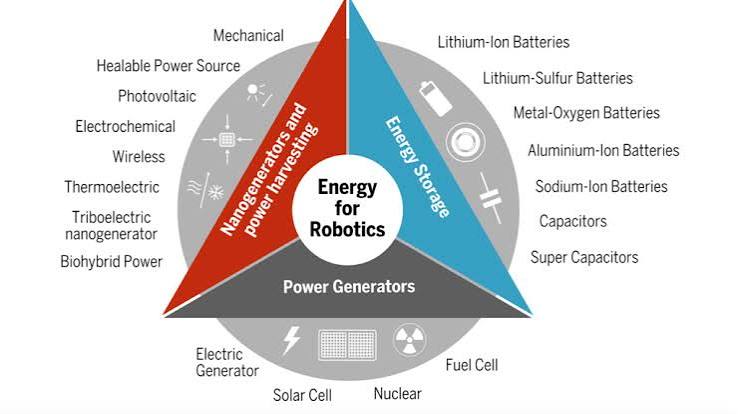
    Robots need power to move, sense, and compute. Batteries are heavy and have limited capacity, and motors and processors generate heat that must be dissipated. These power and thermal constraints limit how long a robot can operate and how much it can do.

    A robot might have a great algorithm, but if it requires too much power, it can’t run for long. Thermal issues can cause components to fail. These physical limitations are often overlooked by software-focused engineers.

    Cost of Iteration: Every Test Costs Money and Time

    In software, you can iterate millions of times for free. In robotics, every physical experiment costs time, money, and materials. If a robot breaks, you have to repair it. If a test fails, you have to set up again. This makes iteration slow and expensive.

    This cost of iteration means that roboticists can’t afford to try as many approaches as software developers. They have to be more careful and rely on simulations, which have their own limitations.

    Integration Complexity: Everything Must Work Together

    A robot is a system of systems: perception, planning, control, and hardware. Each component can work independently, but they must all work together in real time. A failure in any one subsystem can break the whole robot.

    Integration is a huge challenge because components are often developed by different teams or even different companies. They need to communicate flawlessly, handle errors, and coordinate complex actions. This is much harder than integrating software modules, because physical components have their own quirks and failures.

    Testing and Verification: Proving Safety Is Hard

    How do you prove that a robot will behave safely in all possible situations? This is a fundamental challenge in robotics. You can’t test every scenario, so you need formal methods, simulations, and rigorous analysis. But even then, you can’t guarantee absolute safety.

    This lack of verifiability makes it difficult to deploy robots in critical applications like healthcare or autonomous driving. Regulators and the public demand high levels of safety, but achieving that is an open research problem.

    The Bottom Line: Robotics Is a Full-Stack Problem

    Robotics is hard because it requires solving problems across multiple disciplines simultaneously. It’s not just about writing clever code; it’s about building a physical system that can interact with an unpredictable world. This complexity is why many impressive demos don’t translate to commercial success.

    But the challenges are also what make robotics exciting. Every breakthrough—whether in perception, control, or hardware—pushes the boundaries of what machines can do. Understanding these 14 challenges helps set realistic expectations and appreciate the hard work that roboticists do every day.

    Robotics is not just ‘hard software’—it’s a fundamentally different kind of challenge that blends hardware, physics, and real-time decision-making under uncertainty. The 14 reasons above show why robots still struggle with tasks humans find trivial. Yet, these challenges also drive innovation. As we continue to advance in AI, materials, and control theory, some of these hurdles will fall, but new ones will emerge. For now, the difficulty is what makes robotics a fascinating field: it’s a constant test of human ingenuity against the stubbornness of the physical world.

    Summary

    • Robotics is hard because robots must operate in the physical world, which is messy and unpredictable.
    • Key challenges include sensor noise, the Moravec paradox, and real-time constraints.
    • The sim-to-real gap means that training in simulation often doesn’t transfer to the real world.
    • Safety and verification are major concerns, as failures can cause physical harm.
    • The long-tail problem means robots will always encounter unexpected edge cases.

    FAQ

    Q: Why is walking so hard for robots if it’s easy for humans?
    A: This is the Moravec paradox. Tasks like walking require constant real-time adjustments and coordination of many muscles, which is computationally complex. Humans have evolved over millions of years to do this effortlessly, but robots lack that biological hardware.

    Q: Can’t we just use better simulations to train robots?
    A: Simulations are helpful but never perfect. The sim-to-real gap means that differences in physics, lighting, and materials cause robots to fail in the real world even if they succeed in simulation. Closing this gap is an active area of research.

    Q: Why can’t robots just use more sensors to get better data?
    A: More sensors can help, but they also add noise and complexity. Fusing data from many sensors is itself a hard problem, and even the best sensors have limitations. There’s no way to get perfect information about the world.

    Q: Is robotics harder than software engineering?
    A: Yes, in many ways. Robotics requires solving software problems plus hardware constraints, real-time demands, and physical uncertainty. A bug in software is an inconvenience; a bug in a robot can be dangerous.

    Q: Why aren’t robots more common in everyday life?
    A: The challenges listed in this article, like the long-tail problem and integration complexity, make it hard to build reliable, safe robots for unstructured environments. Most robots today work in controlled settings like factories, where the environment is predictable.
  • Mac vs PC for Video Editing: A Practical Guide for 2024

    Mac vs PC for Video Editing: A Practical Guide for 2024

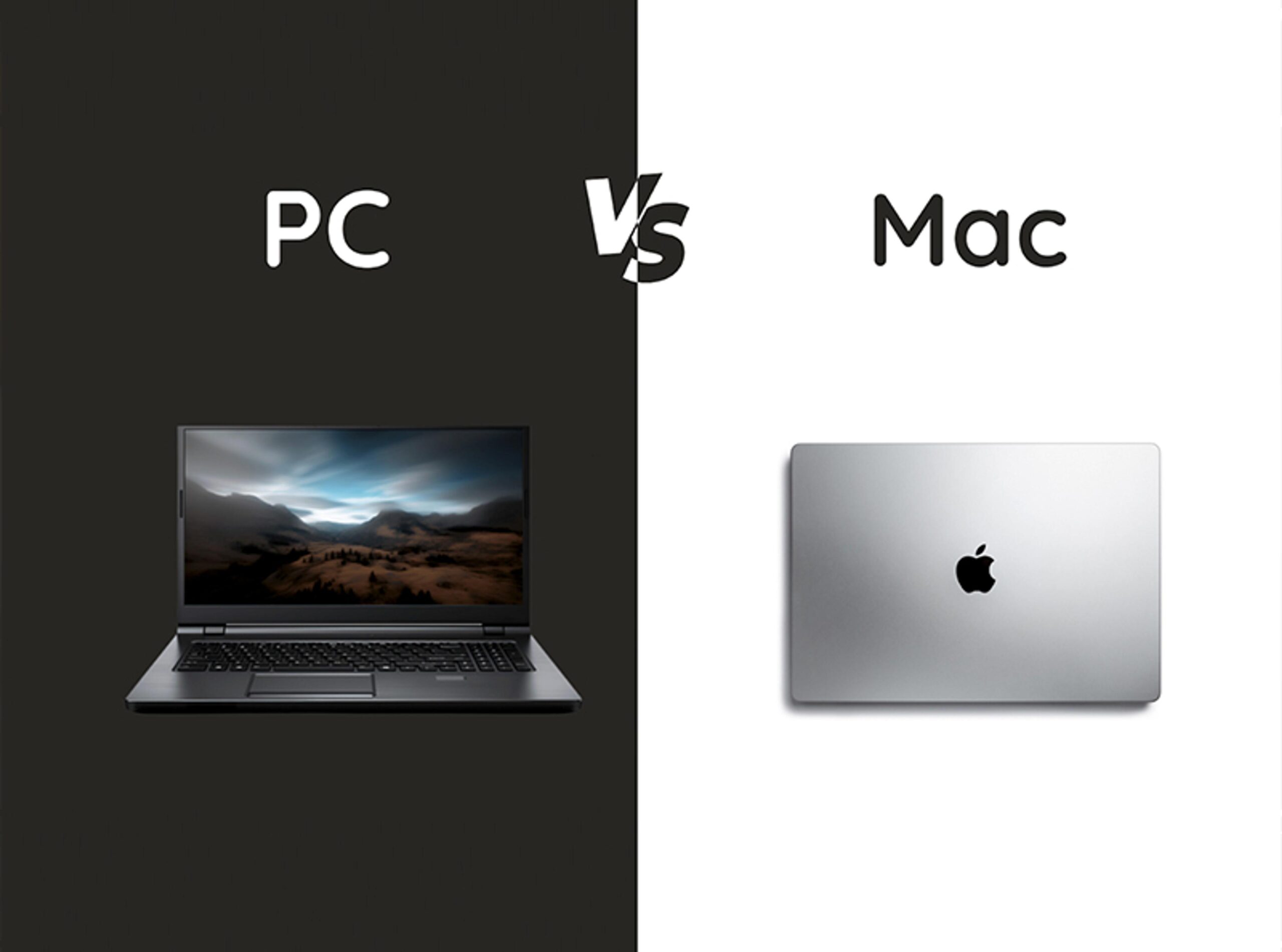
    Choosing between a Mac and a PC for video editing is one of the most debated decisions in the creative world. With Apple’s shift to its own silicon and NVIDIA’s powerful GPUs, the landscape has changed dramatically. This guide breaks down the key differences—performance, software, price, and workflow—to help you make an informed choice based on your specific needs.

    Whether you’re a solo YouTuber, a professional colorist, or a student just starting out, the right platform can save you hours of render time and frustration. But there’s no one-size-fits-all answer. The best choice depends on the codecs you shoot, the software you use, and whether you value portability or upgradability.

    The Hardware Landscape: Apple Silicon vs. PC Components

    Since 2020, Macs have used Apple’s M-series chips (M1, M2, M3, and M4). These chips use a unified memory architecture, meaning the CPU and GPU share the same RAM. This design allows for fast data access and includes dedicated media engines that accelerate video encoding and decoding for formats like H.264, HEVC, and ProRes. In contrast, PCs are built from separate components: Intel or AMD processors, NVIDIA or AMD graphics cards, and system RAM. High-end editing PCs typically feature 32–64GB of RAM, 8–16 core CPUs, and GPUs with 8–24GB of VRAM.

    For video editing, the hardware matters because it directly impacts timeline smoothness, render times, and effects performance. Macs excel at tasks that leverage their media engines, especially ProRes workflows. PCs, on the other hand, shine when you need raw multi-core processing or GPU-accelerated effects, especially with NVIDIA’s CUDA technology.

    Software Support: What Runs Where?

    Most major editing software is available on both platforms. Adobe Premiere Pro, DaVinci Resolve, and After Effects have near-feature parity on Mac and PC. Avid Media Composer, the industry standard for film and TV, also runs on both. The big exception is Final Cut Pro, which is Mac-only. Final Cut Pro is a one-time purchase (around $299) and is known for its magnetic timeline and background rendering, making it a favorite for fast, efficient editing.

    DaVinci Resolve deserves special mention because its free version is remarkably capable on both platforms. The Studio version adds features like noise reduction and HDR grading. If you’re using Resolve, the choice between Mac and PC often comes down to GPU performance—NVIDIA GPUs on PCs are heavily optimized for Resolve, but Macs handle ProRes natively.

    Performance Benchmarks: Real-World Trends

    In 2023–2024, performance between Macs and PCs is closer than ever. For ProRes workflows, Macs (especially M3/M4 Pro and Max models) have a clear advantage due to hardware acceleration. If you shoot on an iPhone or use ProRes for delivery, a Mac will feel snappy. For raw formats like RED, BRAW, or ARRIRAW, high-end PCs with NVIDIA GPUs often match or beat Macs, especially for GPU-accelerated effects and rendering.

    Export times are often comparable in real-world tests. Macs tend to win on battery efficiency and thermal management in laptops, while PCs win on raw multi-core rendering in some workloads. For 8K editing and heavy color grading, both can handle it, but PCs scale better with multiple GPUs—Macs don’t support multi-GPU setups.

    Price and Upgradability: The Long-Term Cost

    Macs are generally more expensive upfront. A MacBook Pro 14 or 16-inch with an M3 Pro or Max chip starts around $1,999–$2,499. The Mac Studio with an M2 Ultra is over $3,999. And once you buy a Mac, you can’t upgrade the RAM or storage later—they’re soldered to the motherboard.

    PCs, on the other hand, range from $1,200 for an entry-level build to $5,000+ for a high-end workstation. You can upgrade RAM, storage, and GPU over time, extending the useful life of your machine by years. This makes PCs a better long-term investment if you’re willing to tinker. However, Macs hold their resale value better, so you can recoup some cost when you sell.

    The Mac-First Argument: Why Many Editors Choose Apple

    Final Cut Pro’s magnetic timeline is a game-changer for many editors—it automatically handles clip connections and trims, saving time. ProRes is the industry standard for delivery, and Macs handle it natively, so you’ll see smooth playback and fast exports. Battery life and portability are unmatched in the MacBook Pro, making it ideal for on-location editing. The machines are also silent, even under load, which is a real benefit in a quiet studio. macOS is stable and less prone to driver issues than Windows.

    The PC-First Argument: Why Power Users Prefer PCs

    Upgradability is the biggest advantage. You can add RAM, swap GPUs, and expand storage, which can extend the life of your system by 2–3 times. NVIDIA’s CUDA acceleration is heavily optimized in DaVinci Resolve, After Effects, and Blender, so if you use these tools, a PC with an RTX GPU will give you excellent performance. Cost per frame is often better on PCs—you get more raw performance for your dollar, especially for rendering. Windows also runs more software, including some plugins and 3D tools like Unreal Engine. And PCs are easier and cheaper to repair, with no need to visit an Apple Store.

    The Nuanced View: It Depends on Your Workflow

    Ultimately, the best choice depends on your specific situation. If you shoot ProRes, a Mac is a no-brainer. If you shoot BRAW or RED, a PC (or a high-end Mac) will give you better performance. If you use Premiere or Avid, either platform works. If you use Final Cut Pro, you must get a Mac. If you use DaVinci Resolve, a PC with an NVIDIA GPU is often the best value.

    Form factor also matters. If you need a laptop, the MacBook Pro is the best editing laptop on the market. If you want a desktop tower with maximum power, a PC is the way to go. And consider long-term cost: Macs cost more upfront but hold value, while PCs cost less but may need upgrades sooner.

    The Hybrid Approach: Using Both

    Many professionals use both platforms. A MacBook Pro for field editing and client meetings, and a PC workstation for heavy rendering and 3D work. This gives you the best of both worlds, though it requires managing two ecosystems. If you have the budget, this is the most flexible setup.

    There’s no definitive winner in the Mac vs PC debate—it all comes down to your workflow, budget, and preferences. Macs offer seamless ProRes support, portability, and a polished user experience. PCs offer upgradability, GPU flexibility, and often better value for raw performance. Consider what you shoot, what software you use, and whether you need a laptop or desktop. By weighing these factors, you’ll find the platform that lets you focus on your creative work, not your hardware.

    Summary

    • Macs excel at ProRes workflows and offer unmatched portability and battery life, especially in the MacBook Pro.
    • PCs offer upgradability and GPU flexibility, with NVIDIA CUDA acceleration boosting performance in Resolve and After Effects.
    • Software support is nearly identical except for Final Cut Pro, which is Mac-only.
    • Performance is comparable in most real-world tests, but PCs scale better with multi-GPU setups.
    • Price and long-term cost: Macs cost more upfront but hold value; PCs are cheaper to upgrade and repair.

    FAQ

    Q: Is a Mac or PC better for video editing?
    A: It depends on your workflow. Macs are better for ProRes and Final Cut Pro, while PCs are better for GPU-heavy tasks and upgradability.

    Q: Can I use Final Cut Pro on a PC?
    A: No, Final Cut Pro is only available on macOS.

    Q: Do I need a dedicated GPU for video editing?
    A: Yes, a dedicated GPU is essential for smooth playback and fast rendering, especially with effects and color grading.

    Q: Are Macs more expensive than PCs?
    A: Generally, yes, Macs have a higher upfront cost, but they hold resale value better. PCs can be cheaper to upgrade over time.

    Q: Which is better for DaVinci Resolve?
    A: Both work well, but PCs with NVIDIA GPUs often offer better performance due to CUDA acceleration. Macs handle ProRes natively, which is a plus if you use that codec.

  • The Best Video Editing Tools: Free and Paid Options Compared

    The Best Video Editing Tools: Free and Paid Options Compared

    Video editing has never been more accessible. From a teenager with a smartphone to a Hollywood post-production house, there’s a tool for every skill level and budget. But with so many options, how do you choose? This guide breaks down the leading free and paid video editors, highlighting their strengths and ideal use cases. Whether you’re a beginner cutting your first vlog or a professional colorist, you’ll find the right fit here.

    The Evolution of Video Editing

    Video editing has come a long way from the days of tape-to-tape linear editing. The 1990s brought non-linear editing (NLE) with tools like Avid and Premiere, allowing editors to access any frame instantly. Then came the consumer boom: iMovie (1999), Windows Movie Maker (2000), and YouTube (2005) democratized video creation. Today, the creator economy and short-form platforms like TikTok and Reels have made video editing a daily habit for millions. The latest shift is AI integration—auto-captions, scene detection, and text-based editing are now standard features.

    Understanding Key Concepts

    Before diving into tools, let’s clarify some jargon:

    • NLE (Non-Linear Editor): The core architecture of all modern editors. It lets you access any part of your video randomly, like a word processor, rather than in a fixed order.
    • Proxy editing: Editing low-resolution copies of your footage for smooth performance, then swapping to high-res for the final export. Essential for 4K and 8K work.
    • Codecs & containers: H.264/H.265 are common for delivery, ProRes/DNxHR for intermediate editing, and RAW for cinema cameras. The container is the file format (like .mp4 or .mov).
    • Color correction vs. grading: Correction fixes exposure and white balance; grading sets the mood and look (e.g., teal and orange for blockbusters).
    • GPU acceleration: Using your graphics card to speed up rendering and effects. Critical for smooth 4K editing.

    The Best Paid Video Editing Tools

    Adobe Premiere Pro

    • Price: $22.99/month (single app)
    • Platform: Windows, Mac
    • Key Strength: Industry standard, deep integration with After Effects, vast plugin ecosystem.

    Premiere Pro is the go-to for many professionals, from YouTubers to corporate video teams. Its timeline is flexible, and the integration with After Effects for motion graphics is seamless. The subscription model includes regular updates and cloud features. If you’re collaborating with a team, Premiere’s shared projects and Adobe Team Projects are robust.

    Final Cut Pro

    • Price: $299 one-time
    • Platform: Mac only
    • Key Strength: Optimized for Apple Silicon, magnetic timeline, fast rendering.

    Final Cut Pro is a favorite among Mac users. Its magnetic timeline automatically snaps clips together, preventing gaps and simplifying edits. It’s incredibly fast on M1/M2 chips, and the one-time price is a relief compared to subscriptions. The downside: it’s Mac-only, so if you switch to Windows, you’ll need to learn a new tool.

    DaVinci Resolve Studio

    • Price: $295 one-time (free version available)
    • Platform: Windows, Mac, Linux
    • Key Strength: Best-in-class color grading, node-based workflow.

    DaVinci Resolve is the industry standard for color grading. The Studio version adds features like noise reduction, HDR grading, and collaborative tools. The node-based workflow is powerful but has a learning curve. The free version is so capable that many professionals use it for everything except the most advanced features.

    Avid Media Composer

    • Price: ~$24.99/month or $1,299 perpetual
    • Platform: Windows, Mac
    • Key Strength: Standard in film/TV broadcast, collaborative workflows.

    If you’re aiming for Hollywood, Avid is the tool. It’s been used on countless films and TV shows. Its media management and collaboration features are unmatched. However, it’s overkill for most solo creators, and the interface feels dated compared to modern tools.

    Vegas Pro

    • Price: ~$299–$499
    • Platform: Windows
    • Key Strength: Long-standing consumer/prosumer favorite, intuitive timeline.

    Vegas Pro has been around for decades. It’s known for its straightforward timeline and powerful audio tools. It’s a solid choice for Windows users who want a one-time purchase without the complexity of DaVinci.

    The Best Free Video Editing Tools

    DaVinci Resolve (Free)

    • Price: $0
    • Platform: Windows, Mac, Linux
    • Key Strength: Professional color grading, no watermark, unlimited tracks.

    The free version of DaVinci Resolve is a game-changer. It includes most of the Studio features, including professional color grading, multi-cam editing, and audio post-production. There’s no watermark and no time limit. The only limitations are some advanced effects and collaboration features. For beginners, the learning curve is steep, but the payoff is huge.

    CapCut

    • Price: $0 (freemium)
    • Platform: Windows, Mac, Mobile, Web
    • Key Strength: TikTok/Reels/Shorts optimized, AI features, templates.

    CapCut is the darling of the short-form video world. It’s free, with a Pro tier for extra features. It offers auto-captions, background removal, and a huge library of templates and effects. It’s incredibly easy to use, making it perfect for social media creators. The mobile app is especially popular.

    Shotcut

    • Price: $0 (open source)
    • Platform: Windows, Mac, Linux
    • Key Strength: Cross-platform, open-source, wide format support.

    Shotcut is a powerful open-source editor that runs on all major platforms. It supports a wide range of formats and has a clean interface. It’s a great choice for Linux users or those who prefer open-source software. The learning curve is moderate.

    OpenShot

    • Price: $0 (open source)
    • Platform: Windows, Mac, Linux
    • Key Strength: Beginner-friendly, simple interface.

    OpenShot is one of the easiest editors to learn. It has a simple drag-and-drop interface and basic effects. It’s perfect for absolute beginners who just want to cut clips together. However, it lacks advanced features like color grading.

    HitFilm Express

    • Price: $0 (freemium)
    • Platform: Windows, Mac
    • Key Strength: VFX/compositing focus, good for beginners.

    HitFilm Express is a free editor with built-in visual effects and compositing tools. It’s great for beginners who want to add effects without learning After Effects. The free version includes a lot, but some advanced features require a paid upgrade.

    iMovie

    • Price: Free with Apple devices
    • Platform: Mac, iOS
    • Key Strength: Simple, elegant, good for beginners.

    iMovie comes free on every Mac and iPhone. It’s perfect for quick edits, trailers, and simple projects. It’s not as powerful as Final Cut Pro, but it’s a great starting point. The mobile version is surprisingly capable.

    Clipchamp

    • Price: Free (Microsoft)
    • Platform: Web, Windows
    • Key Strength: Browser-based, integrated with Windows 11, stock library.

    Clipchamp is Microsoft’s answer to easy video editing. It’s web-based, so you can use it anywhere, and it’s integrated into Windows 11. It includes a stock library and templates. The free tier is generous, with paid plans for more features.

    Kdenlive

    • Price: $0 (open source)
    • Platform: Windows, Mac, Linux
    • Key Strength: Feature-rich open-source alternative.

    Kdenlive is another open-source editor that’s more advanced than Shotcut or OpenShot. It supports multi-track editing, effects, and transitions. It’s a good middle ground for Linux users who need more power.

    How to Choose the Right Tool for You

    For Beginners and Casual Creators

    If you’re just starting, prioritize ease of use. CapCut is perfect for short-form social media. iMovie (Mac) or Clipchamp (Windows) are great for simple projects. OpenShot is also beginner-friendly. You don’t need advanced features yet—focus on learning the basics.

    For Professionals and Commercial Editors

    If you’re editing for a living, reliability and industry compatibility matter. Premiere Pro is the standard in corporate and agency work. Avid is essential for film/TV. DaVinci Resolve Studio is the best for color grading. Many pros use a combination, like Premiere for editing and DaVinci for color.

    For YouTubers and Social Media Creators

    Speed and captions are key. CapCut is the fastest for short-form. For long-form YouTube, Premiere Pro with plugins like AutoCaptions is powerful. DaVinci Resolve free is also excellent for quality. AI features like auto-reframe are now essential—check if your tool has them.

    For Filmmakers and Colorists

    If you’re serious about color, DaVinci Resolve is non-negotiable. The free version is used by professionals for grading. Final Cut Pro is efficient for Mac users. Premiere is flexible for workflow. Consider RAW support and HDR capabilities.

    For Open-Source and Privacy Advocates

    If you want no cost and no telemetry, Shotcut, OpenShot, and Kdenlive are excellent. They’re community-driven and respect your privacy. DaVinci Resolve free is also a great choice, though it’s not open-source.

    The Future of Video Editing

    The market is growing, with a projected increase from $1.2 billion in 2023 to over $2 billion by 2030. The trend is toward subscription models, but one-time purchases like Final Cut Pro and DaVinci Resolve Studio remain popular. Free tools are becoming more powerful—DaVinci Resolve free is a prime example. AI is the next frontier, with features like auto-captions and scene detection becoming standard. As a creator, you have more options than ever. The best tool is the one that fits your workflow and budget.

    Choosing the right video editing tool depends on your needs, budget, and platform. For beginners, free tools like CapCut and iMovie are perfect. For professionals, Premiere Pro and DaVinci Resolve Studio are industry standards. And for those who want professional quality without the price tag, DaVinci Resolve free is unbeatable. Try a few, and see which one feels right. Happy editing!

    Summary

    • Free tools are powerful: DaVinci Resolve free offers professional color grading, while CapCut is ideal for short-form social media.
    • Paid tools offer depth: Premiere Pro is the industry standard, Final Cut Pro is great for Mac users, and DaVinci Resolve Studio is best for color.
    • Consider your platform: Mac users have Final Cut Pro and iMovie; Windows users have Vegas Pro and Clipchamp; Linux users have Shotcut and Kdenlive.
    • AI is the future: Auto-captions, scene detection, and auto-reframe are becoming standard features.
    • Subscription vs. one-time: Adobe and Avid are subscription-based, while Final Cut Pro and DaVinci Resolve Studio are one-time purchases.

    FAQ

    Q: What is the best free video editing software?
    A: DaVinci Resolve is widely considered the best free option due to its professional color grading and no watermark. CapCut is also excellent for social media creators.

    Q: Is Final Cut Pro worth the one-time cost?
    A: If you’re a Mac user and need a fast, efficient editor without a subscription, Final Cut Pro is worth it. It’s optimized for Apple Silicon and has a magnetic timeline that speeds up editing.

    Q: Can I use DaVinci Resolve for professional work?
    A: Absolutely. The free version is used by professionals for color grading and editing. The Studio version adds advanced features like noise reduction and collaboration tools.

    Q: What’s the difference between color correction and color grading?
    A: Color correction fixes technical issues like exposure and white balance. Color grading sets the mood and style, like making a scene look warm or cinematic.

    Q: Do I need a powerful computer for video editing?
    A: It depends on the resolution and effects. For 4K editing, a modern CPU and GPU are recommended. Many tools support proxy editing, which lets you edit low-res copies for smoother performance.