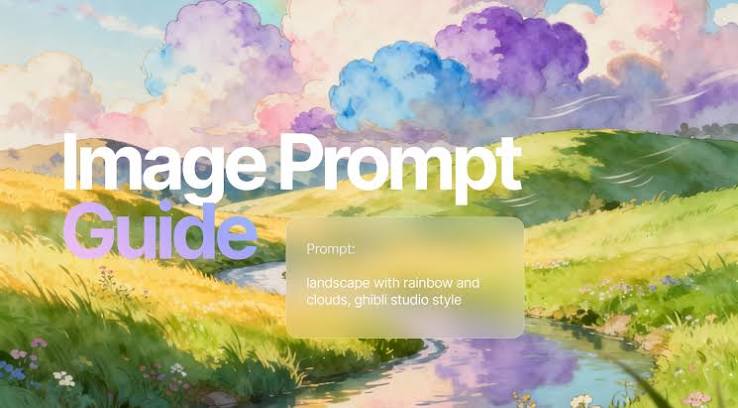
You type a sentence, and a picture appears. That’s the magic of text-to-image AI, but the real skill lies in what you type. This guide explains how to craft prompts that produce the images you envision, even if you’ve never held a pencil.
Text-to-image models like DALL-E 3, Midjourney, and Stable Diffusion don’t ‘draw’ in the traditional sense. They translate your words into visual patterns based on vast training data. The better your prompt, the closer the result to your imagination. This guide covers the anatomy of a good prompt, common pitfalls, and practical tips for refining your output.
The Anatomy of a Good Prompt
Think of a prompt as a recipe. If you only say ‘make a cake,’ you might get a lumpy mess. But if you specify ‘a chocolate layer cake with vanilla frosting, on a ceramic stand, soft lighting,’ you’re much more likely to get a delicious result. Similarly, an effective prompt includes:
- Subject: What is the main focus? (e.g., a fox, a spaceship, a portrait)
- Style: Artistic movement, medium, or aesthetic (e.g., watercolor, impressionist, cyberpunk)
- Lighting: Mood and atmosphere (e.g., soft morning light, neon glow, dramatic shadows)
- Composition: How elements are arranged (e.g., close-up, wide shot, symmetrical)
- Color palette: Dominant colors or mood (e.g., pastel, monochrome, vibrant)
- Mood: Emotional tone (e.g., serene, eerie, joyful)
For example, compare these two prompts:
- Weak: ‘A tree.’
- Strong: ‘A lone oak tree in a misty meadow, impressionist oil painting, soft diffused light, muted greens and browns, peaceful mood.’
The second prompt gives the AI clear direction, resulting in a much more intentional image.
Negative Prompts: What to Avoid
Some platforms, like Stable Diffusion and Midjourney, support negative prompts—text that tells the model what not to include. This is invaluable for fixing common AI errors like extra fingers, blurry edges, or unwanted objects.
For instance, if you’re generating a portrait, you might add a negative prompt: ‘blurry, distorted, extra fingers, mutated hands.’ This helps the model avoid those typical glitches.
Negative prompts are like telling a chef, ‘No nuts, please.’ It narrows the possibilities and prevents disappointment.
Parameters: The Fine-Tuning Knobs
Beyond the prompt, you can adjust technical parameters to control the output:
- Aspect ratio: The width-to-height ratio (e.g., 16:9 for widescreen, 1:1 for square).
- Seed: A number that controls randomness. Using the same seed with the same prompt reproduces the same image, useful for consistency.
- Sampling steps: How many iterations the model runs. More steps can mean more detail, but also longer processing time.
These parameters vary by platform, but understanding them helps you refine your results. For example, on Midjourney, you can add --ar 16:9 to set the aspect ratio, or --seed 12345 to fix a seed.
Iteration: The Secret to Great AI Art
No one gets the perfect image on the first try. Professional AI artists generate dozens of variations, tweaking their prompts and parameters based on what works. This iterative process is the core of ‘drawing’ with AI.
Start with a simple prompt, see what comes out, then adjust. Did you want more contrast? Add ‘high contrast’ to your prompt. Too much clutter? Use a negative prompt to remove distracting elements. Each iteration teaches you how the model interprets language.
Platform-Specific Tips
Different platforms have different strengths:
- Midjourney: Known for high aesthetic quality and stylization. It excels at producing ‘beautiful’ images but may require more prompt finesse to get specific compositions.
- DALL-E 3: Excellent at following natural language instructions. You can write long, descriptive sentences, and it will understand.
- Stable Diffusion: Offers the most control, especially with add-ons like ControlNet for pose/edge control and inpainting for editing. But it has a steeper learning curve.
- Adobe Firefly: Commercially safe, meaning its training data is licensed. Great for professional use.
For beginners, DALL-E 3 or Midjourney are often the easiest entry points. For tinkerers, Stable Diffusion offers endless possibilities.
Common Mistakes and How to Avoid Them
- Vague prompts: ‘A beautiful landscape’ is too broad. Be specific about the type of landscape, time of day, and style.
- Overcomplicating: Too many conflicting elements can confuse the model. Keep prompts focused.
- Ignoring negative prompts: Use them to prevent common errors.
- Expecting perfection: AI is a tool, not magic. Embrace imperfection and use iterations to refine.
Beyond the Basics: Advanced Techniques
As you get comfortable, explore advanced features:
- Img2img: Use an existing image as a starting point for style transfer or modification.
- Inpainting: Erase parts of an image and regenerate them with new prompts. Useful for fixing flaws.
- ControlNet: In Stable Diffusion, this allows you to control pose, edges, or depth, giving you precise compositional control.
These tools blur the line between ‘drawing’ and ‘directing,’ letting you sculpt AI outputs with precision.
Drawing with AI is really about writing with intention. The more precise and descriptive your prompts, the closer you’ll get to the image in your mind. Start simple, iterate often, and don’t be afraid to experiment. With practice, you’ll develop an eye for what works—and your ‘drawings’ will improve by leaps and bounds.
Summary
- Text-to-image AI turns natural language prompts into images; the skill is in prompt engineering.
- A good prompt includes subject, style, lighting, composition, color palette, and mood.
- Negative prompts prevent common errors like extra fingers or blurriness.
- Parameters like aspect ratio, seed, and sampling steps offer fine-tuning control.
- Iteration is key: generate multiple versions, tweak prompts, and learn from results.
FAQ
Q: What is the best free AI image generator?
A: It depends on your needs. Stable Diffusion is open-source and free to run locally, but requires some technical setup. Bing Image Creator (powered by DALL-E) and Canva’s AI tools offer free tiers with limited features. Midjourney has a free trial but requires a subscription for full use.
Q: Why do AI-generated hands look weird?
A: Hands are complex structures with many joints and variations, and early AI models struggled to render them accurately. Modern models are better, but you can still get glitches. Use negative prompts like ‘extra fingers’ or ‘mutated hands’ to reduce issues, or try generating with a focus on hands in the prompt.
Q: Can I use AI-generated art commercially?
A: It depends on the platform and your location. Adobe Firefly is trained on licensed data and is safe for commercial use. Midjourney’s terms allow commercial use for paid subscribers. DALL-E 3 (via OpenAI) allows commercial use, but you should check the latest terms. Always review the platform’s licensing agreement.
Q: Is using AI ‘cheating’ in art?
A: That’s a matter of perspective. AI is a tool, like a camera or digital brush. Many professional artists use AI for ideation and then refine manually. Whether it’s ‘cheating’ depends on the context and your intent. In education, it can teach language precision and visual thinking.
Q: How do I get consistent characters across images?
A: Use the same seed and prompt, or use img2img to maintain a consistent style. Some platforms, like Midjourney, have features for character consistency (e.g., –cref for character reference). In Stable Diffusion, you can use LoRA models trained on specific characters.