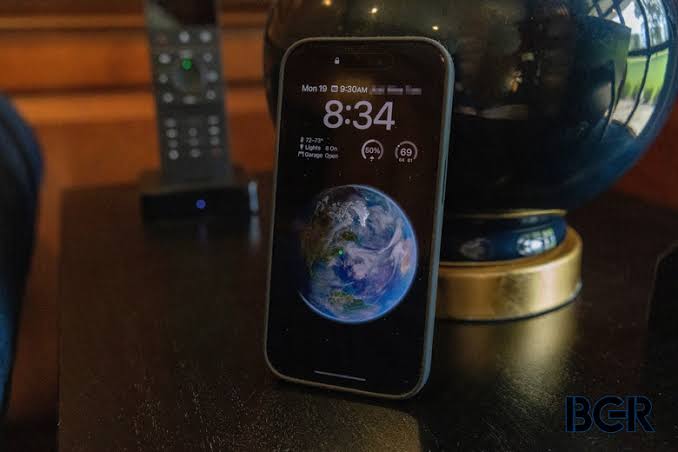
Imagine waking up to a notification that your iPhone battery is at 20% by mid-afternoon, and you haven’t even streamed a video. For many users, battery anxiety is a daily reality. A viral claim suggests that iOS 19 hides a secret setting that can double your battery life a digital panacea for your power woes. But before you start digging through your Settings app, let’s clarify something: iOS 19 hasn’t been released yet. The latest public version is iOS 18, and any ‘iOS 19’ settings are either from beta versions or speculative rumors. Still, there are real—though often overlooked—settings that can dramatically improve battery performance. This article uncovers the most effective ones and evaluates whether the ‘double your battery’ claim holds any water.
The Truth Behind the ‘Invisible’ Setting
The idea of a single, hidden toggle that doubles battery life is appealing—and largely a myth. Apple’s battery management is designed to ‘just work,’ automating most optimizations. The settings that do exist are often buried in Accessibility menus or sub-settings, making them invisible to average users. But ‘invisible’ doesn’t mean ‘nonexistent.’ Several genuinely effective settings can extend battery life, though none will literally double your runtime.
Real-world tests suggest that combining aggressive settings—like disabling Background App Refresh for social media apps, switching from 5G to LTE, and limiting the display refresh rate—can yield a 20-40% improvement. Doubling would require halving power consumption, which is improbable without crippling functionality.
The Real Candidates: What Works
1. Low Power Mode (The Obvious One)
Low Power Mode is the closest thing to a battery miracle. It reduces background activity, disables 5G, and limits the refresh rate. It’s not invisible—it’s a toggle in Control Center and Settings > Battery. While it doesn’t double battery life, it can extend it by up to 30% in demanding situations. The catch? It also disables features like automatic downloads and some visual effects.
2. Background App Refresh (Per-App Control)
This is the hidden gem. Most users leave Background App Refresh on for all apps, allowing them to check for updates in the background. Disabling it for apps that don’t need constant updates—like social media or news apps—can save significant power. Go to Settings > General > Background App Refresh and toggle off apps that are battery hogs. You’ll still get notifications, but only when you open the app.
3. 5G to LTE Switch
5G is a notorious battery drain. Unless you’re in an area with strong 5G coverage, your phone constantly searches for a signal, consuming power. Switch to LTE: Settings > Cellular > Cellular Data Options > Voice & Data > select ‘LTE.’ This can improve battery life by 10-20% in areas with poor 5G reception.
4. Reduce White Point (The Accessibility Trick)
This setting dims your screen beyond the normal minimum brightness. It’s designed for users with light sensitivity, but it’s also a battery saver, especially on OLED displays where brightness directly affects power consumption. Enable it via Settings > Accessibility > Display & Text Size > Reduce White Point. You can also set it to toggle via the side button for convenience.
5. Limit Frame Rate (For ProMotion Devices)
If you own an iPhone 13 Pro or later, your display can run at 120Hz, which is smooth but power-hungry. Apple includes a hidden setting to cap the refresh rate at 60Hz: Settings > Accessibility > Motion > Limit Frame Rate. This can extend battery life without a noticeable difference for most tasks.
Why the ‘Doubling’ Claim Misses the Mark
The ‘double your battery’ claim likely originates from confusion between battery runtime and battery lifespan. Limiting charging to 80% (via Optimized Battery Charging) can indeed double the number of charge cycles before your battery degrades below 80% capacity—but that’s about longevity, not daily hours. If you want to extend your phone’s lifespan, that’s the setting to use.
The Cumulative Approach
No single setting will transform your battery. The best results come from combining several tweaks. For example:
- Turn on Low Power Mode during heavy usage.
- Disable Background App Refresh for social media.
- Switch to LTE when you’re not streaming.
- Use Reduce White Point in dark environments.
These changes, while not doubling your battery, can push you from a day-and-a-half of use to two full days—a noticeable improvement.
What About iOS 19?
As of now, iOS 19 is not yet public. Rumors suggest it will bring a new design inspired by visionOS and enhanced AI features, which might increase battery drain. If that happens, these tips will become even more relevant. But don’t wait for a ‘magic setting’ in iOS 19—start implementing these tweaks in iOS 18 today.
The promise of an ‘invisible’ setting that doubles battery life is a seductive myth. Reality is less dramatic but still promising: by combining several accessible—though often overlooked—settings, you can significantly extend your iPhone’s daily battery life. Start with Low Power Mode and Background App Refresh, and you’ll see immediate gains. As for iOS 19, keep an eye on beta releases for new battery optimizations, but don’t expect a miracle toggle. Your best battery life strategy is a mindful combination of the tools Apple already provides.
Summary
- The ‘invisible’ iOS 19 setting that doubles battery life is likely a myth; no single setting can double runtime.
- Real battery savings come from combining settings like Low Power Mode, disabling Background App Refresh for specific apps, switching to LTE, and using Reduce White Point.
- These tweaks can yield 20-40% improvement, not 100%.
- The ‘doubling’ claim may refer to battery lifespan, where limiting charge to 80% can double cycle life.
- iOS 19 is not yet released; current tips apply to iOS 18 and earlier.
FAQ
Q: Is there a hidden setting in iOS 19 that doubles battery life?
A: No. iOS 19 isn’t released yet, and no setting can double your daily battery life. The claim is likely clickbait or a misunderstanding. Real settings can extend battery life by up to 40% when combined.
Q: What is the most effective battery-saving setting?
A: Low Power Mode is the most effective single toggle, extending battery by up to 30%. For a more permanent solution, disable Background App Refresh for non-essential apps.
Q: How can I make my iPhone battery last longer over years?
A: Enable Optimized Battery Charging (Settings > Battery > Battery Health & Charging). It limits charging to 80% until you need it, which can double your battery’s lifespan in charge cycles.
Q: Does switching to LTE really save battery?
A: Yes, especially if you have weak 5G signal. Your phone uses extra power to maintain a 5G connection. Switch to LTE in Settings > Cellular > Cellular Data Options > Voice & Data to save up to 20% battery.
Q: Are these settings available in iOS 18?
A: Yes, all the settings mentioned are available in iOS 18 and earlier versions. They are not ‘invisible’ but are buried in menus like Accessibility, making them easy to miss.